The iPhone’s home screen shows several preinstalled applications. These icons are displayed, even if you do not want or use them. If you want to get rid of them, well, you cannot, but I will show you how to get around it.
Ready for the tip? OK, brace yourself: Put your undesirable or unwanted applications on your last home page. OK, so it is not the most ideal way to do it, but it will keep those apps out of your way at least.
For a more in-depth solution, see Macenstein’s “How to: Delete Apple’s Apps from your iPhone – aka ‘the Hidden 10th iPhone app screen'” article. Macenstein’s method puts applications on a hidden overflow page. The problem with that method is that it only works until the iPhone is shut off.
A third option is to jailbreak your phone, which is both sketchy and possibly illegal. Not to mention that your expensive iPhone may turn into a paperweight or a brick. If you want to go the jailbreaking route, Google search programs like Poof or Sbsettings.
Apple really should have a “Hide” or “Look & Feel” option in the General Settings menu that lets you hide applications without removing them from the iPhone.
Do you have any iPhone tips or tricks to share? Please leave a comment below, and thank you for stopping by.
Have you ever wanted to transfer some files from work/school to home, but you forgot your USB flash drive? But you’re an iPhone user right? Here’s how to store files on your iPhone just as if it was a regular USB flash drive or hard drive.
DiskAid is a great program that allows your iPhone (or iPod Touch) to go into “Disk Mode.” In other words, your iPhone becomes visible like a USB disk – drag and drop files to and from it. Note that this program works on Windows (XP SP2+, Vista, 7) and Mac OS X (10.4 or higher) and requires iTunes 8.2.1.
UPDATE: I just noticed that this is a 14 day trial, so keep that in mind. The previous version that I downloaded did not have a time restriction. If you like the program, their website lists the license cost at $9.90, which isn’t too bad. Please note that I am not affiliated with the company, DigiDNA in any way.
Do you have any iPhone tips or tricks to share? Leave a comment below. Thanks for stopping by.
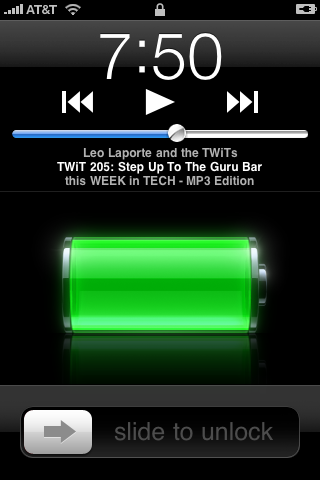
If you’re listening to music or an audio podcast and the passcode screen lock kicks in on your iPhone, you can still control the audio without entering your 4-digit PIN code to unlock it.
Instead of entering the passcode, double-click the home button (the only physical button on the face of the iPhone.)
You will see a screen similar to this:

Figure 1: Locked Screen on the iPhone with Podcast Controls
The controls let you pause or go to the previous or next track or next podcast. Of course you can also control the volume at any time using the up and down buttons on the side of your iPhone, even when the screen is black.
That is all there is to it. You can now control your music and podcasts without entering in your passcode to unlock the screen.
Do you have any other tips or tricks to share? Please leave a comment below. Thanks for coming by.