Quick Tip: Email Your iPhone Photos in Full Resolution
So you have an iPhone, and it takes decent pictures. But when emailing directly from you iPhone, your photos get resized automatically to 800×600. This is usually not really a bad thing since the file size is smaller and can be emailed faster, but sometimes you want to send the original full resolution photo. Here’s how to do it:
- Go to your Camera Roll.
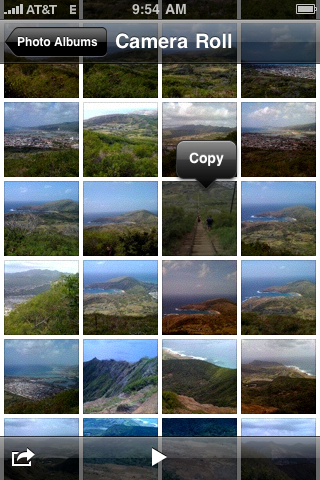
- Press and hold your finger down on the image you want to email until a Copy balloon appears. Click “Copy” – the balloon should turn blue.

Figure 1: Copy the picture from the Camera Roll
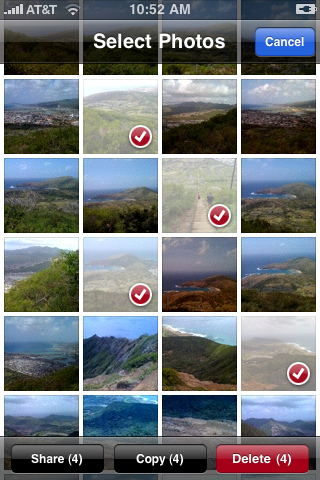
- Bonus: If you want to select multiple photos to email, from your Camera Roll, click the box/arrow icon in the lower left corner of the screen. Select the photos you want, and then tap the Copy button.
Figure 2: Copy Multiple Photos
- Use the home button to return to the home screen.
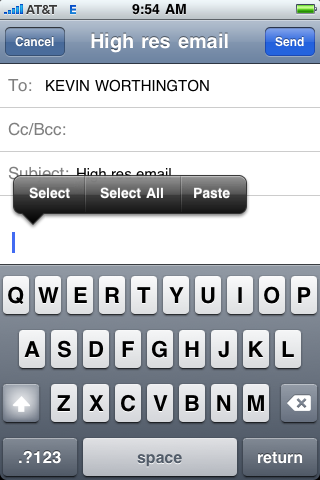
- Start up Mail and compose a new email.
Figure 3: Compose the email and select Paste
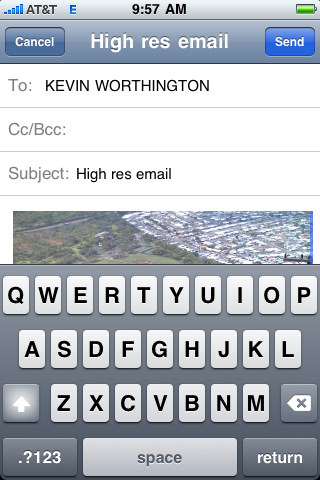
- Paste the photo(s) into the new message.
Figure 4: The full res photo in the email
That’s it! Instead of small, automatically resized pictures, you will have the full resolution versions.
If you’re wondering how to do screen captures from an iPhone, check out the previous post: Grab a Screen Capture / Screenshot of your iPhone or iPod Touch.
Do you have any other tips or tricks to share? Leave a comment below. Thanks for stopping by.
Did you ever see a really cool image or even a glitch on your iPhone or iPod Touch, and you wanted to save it to show someone else? Or maybe you wanted to check it out again later? Well, it IS possible. In fact, you can take a screen grab/capture (screenshot) of any application from your iPhone/iPod Touch. I thought this was something that most iPhone/iPod Touch users already knew, but recently I’ve taught several people how to do this. So I’ve decided to write this Quick Tip. Ready to take some screenshots? Here we go:
First, be aware that you need at least firmware version 2.0 to take screenshots. If you don’t already have at least version 2.0, you can connect your device to iTunes and update the firmware.
Easy directions:
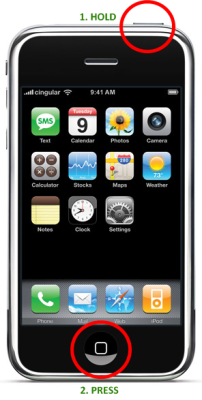
1. Hold down the home button and then press the top button.
2. The screen will flash as feedback that the screenshot was taken.
3. Go to your camera roll to view the screen grab.
Image depicting the procedure:

The no-nonsense way to take a screenshot on your iPhone / iPod Touch
Here are my favorite free and easy to use update checker applications for Mac OS X and Windows. These small programs scan your computer for the latest software updates to keep your system up to date. Although these programs work great and have been tested extensively, please make sure you have a working backup of your system before running these update checkers.
For Mac OS X:
AppFresh is a useful program for updating all applications, widgets, preference panes and application plugins. It scans for both Apple applications and third-party software on your computer, and then does an online check if there are available updates. You can then download and install the updates from within AppFresh. Please note that if you only want to update Apple software, you can run OS X’s Software Update from the Apple menu in the top left of your desktop.
For Windows:
File Hippo’s Update Checker performs similarly to AppFresh – you run a small desktop app, then it communicates to the File Hippo servers and displays an updates list. It can show beta program updates, and even the install path on your system for each program. Note that this does not check for Microsoft program updates – it only checks for third-party software updates. For Microsoft products, open up Internet Explorer and visit Microsoft Update.
For further reading and updater alternatives for Windows, visit: (dead link as of August 2021 – it was http://www.techsupportalert.com/best-free-software-update-monitor.htm) Best Free Software Update Monitor.
If you have an alternative update checkers that you like or have any questions or comments, please enter it below.